System Guide|HoloONE Online Photo Review
2025-11-22
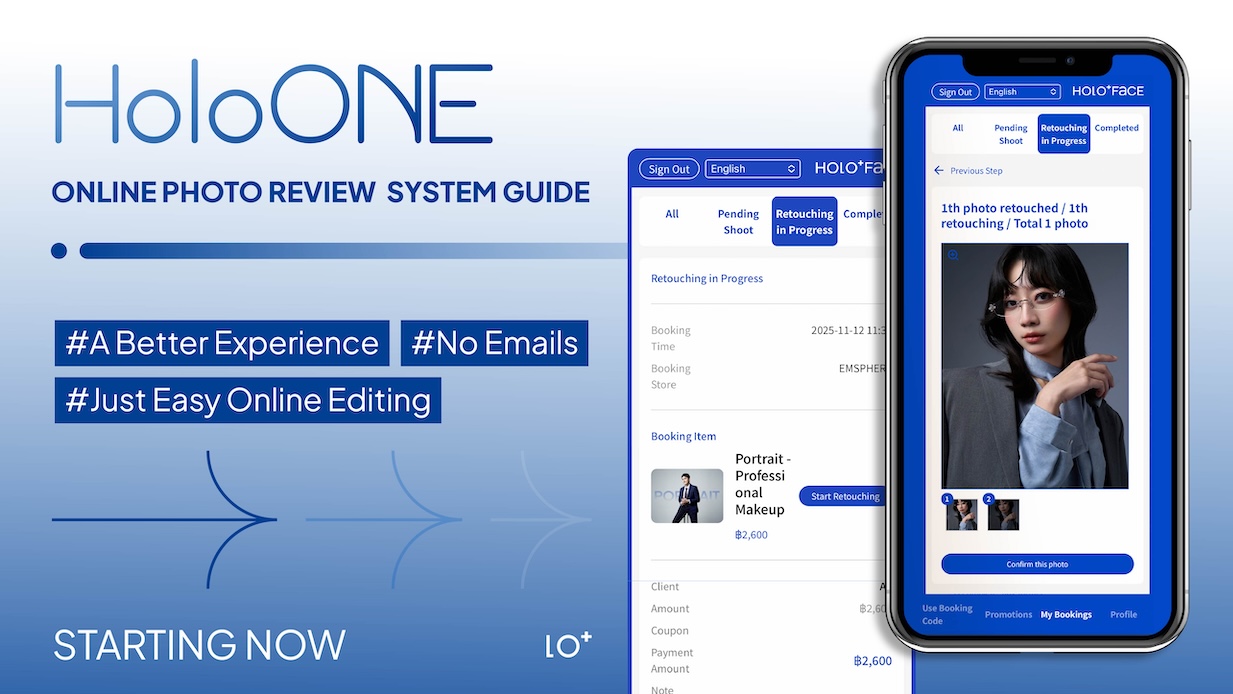
At HOLO+FACE, we care about how you feel throughout the entire experience.
That’s why we created the HoloONE booking system — a simple way to bring all our online and offline services together while you enjoy a seamless, star-level photoshoot.
HoloONE takes the place of emailing photos back and forth, so online retouching is easier than ever!
No more stressing about missing files or deleted emails — everything’s right there in the system.
Let’s walk through how to use it!
-
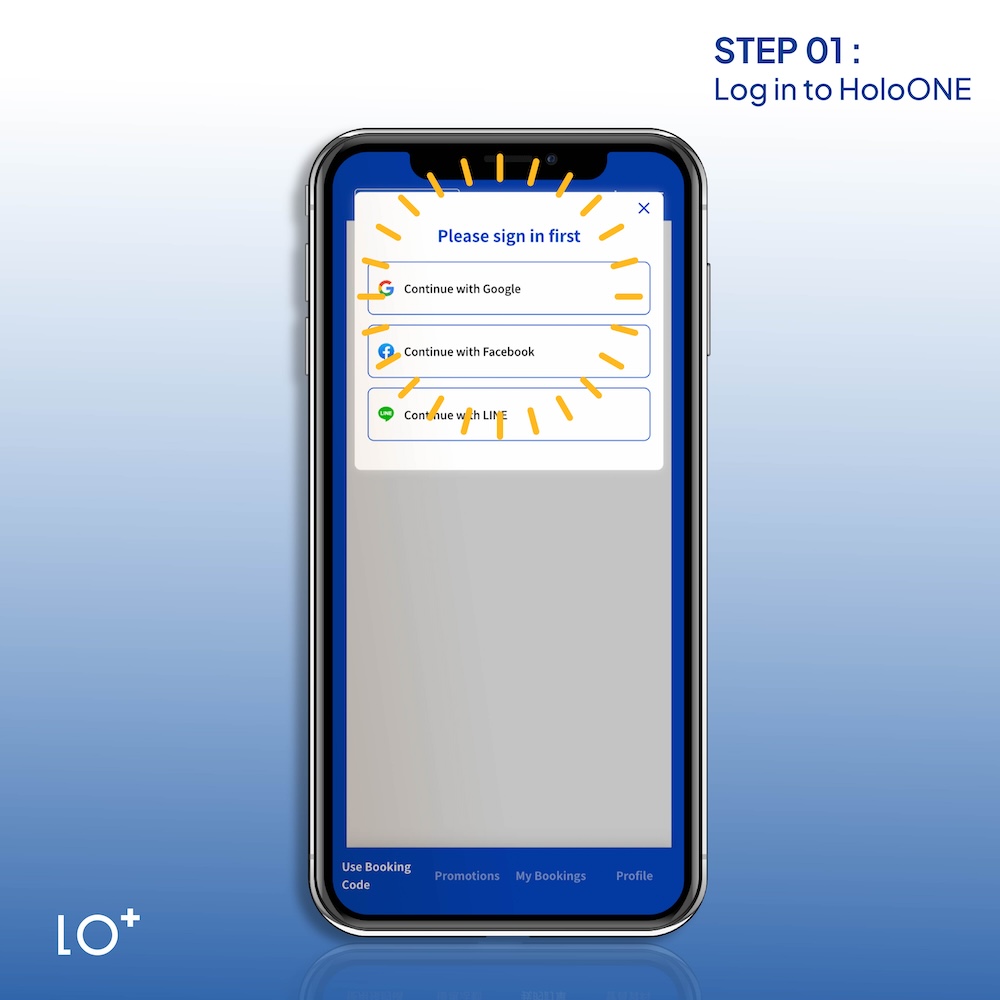
STEP-01|Log in to HoloONE
First, log in with the account the front desk set up for you.
Make sure you pick the right one—unlinked accounts won’t show your photos.
-
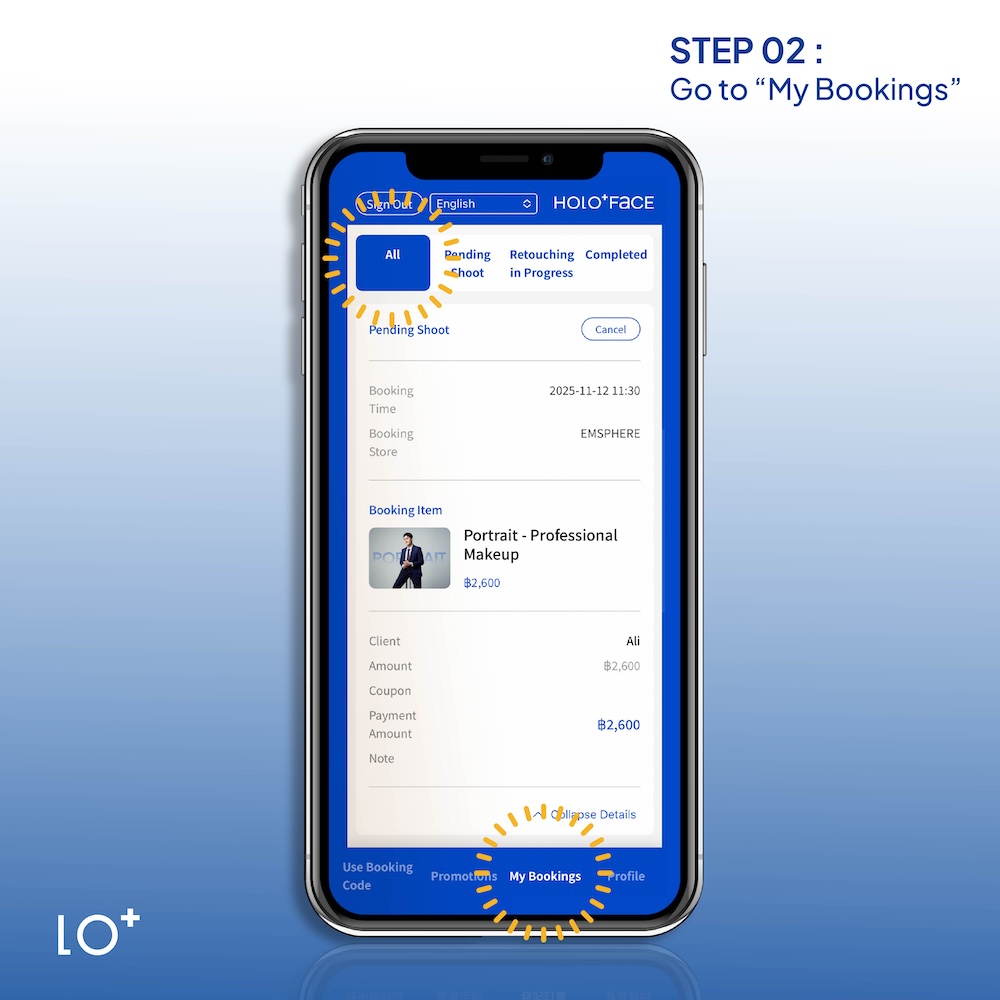
STEP-02|Go to “My Bookings”
After logging in to HoloONE, go to “My Bookings”
→ “All” to open your order page.
-
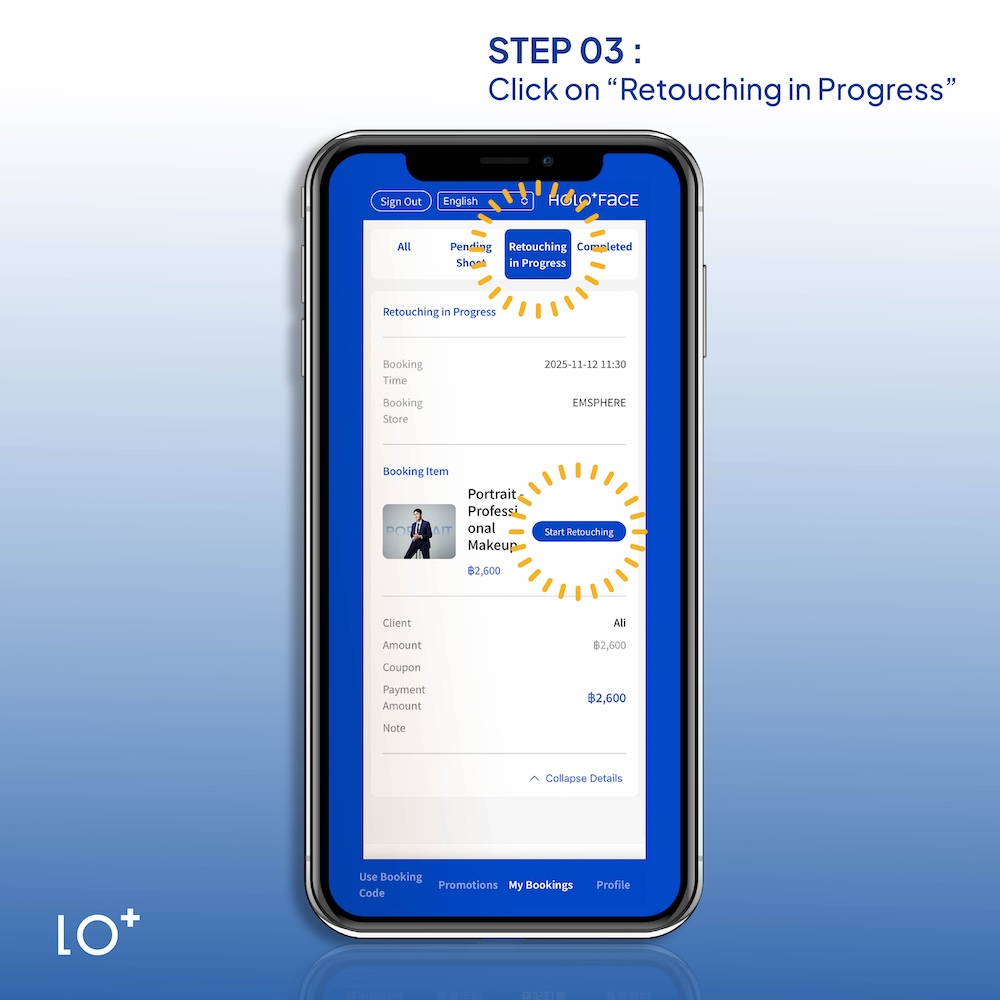
STEP-03|Click on “Retouching in Progress”
Tap “Retouching in Progress” on top, then hit “Start Retouching” on your order to start the review.
-
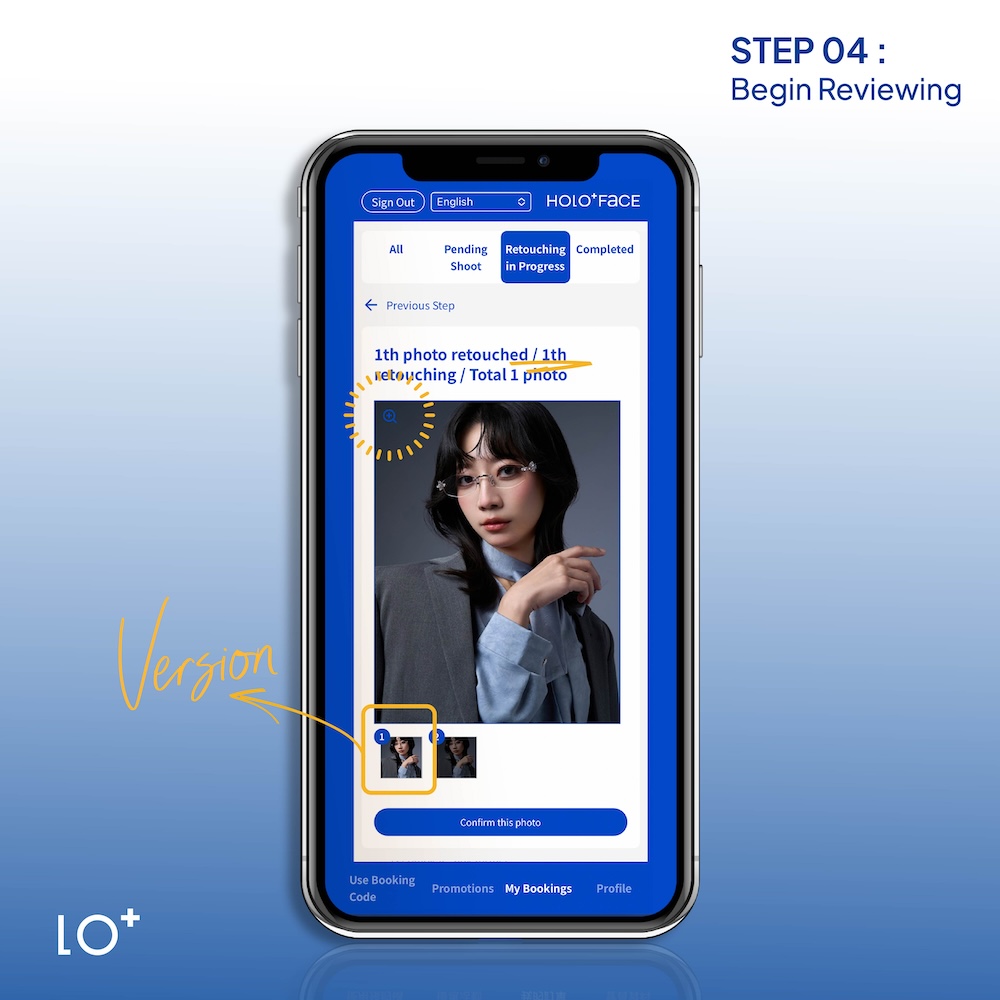
STEP-04|Begin Reviewing
In the review, tap the top-left magnifying glass to zoom in on the photo.
🔔 Reminder: Your photos will be on HoloONE before the deadline, and you can check the retouched files in the review area.
After the retoucher uploads the initial retouching, you’ll get an email to start reviewing online
We recommend completing your retouch within 30 days after your shoot. You can choose to review and discuss online with the retoucher, or do a one-on-one session in-store.
If you miss the deadline, the system will automatically close your order and print your photos, so please take note to avoid any issues!
-
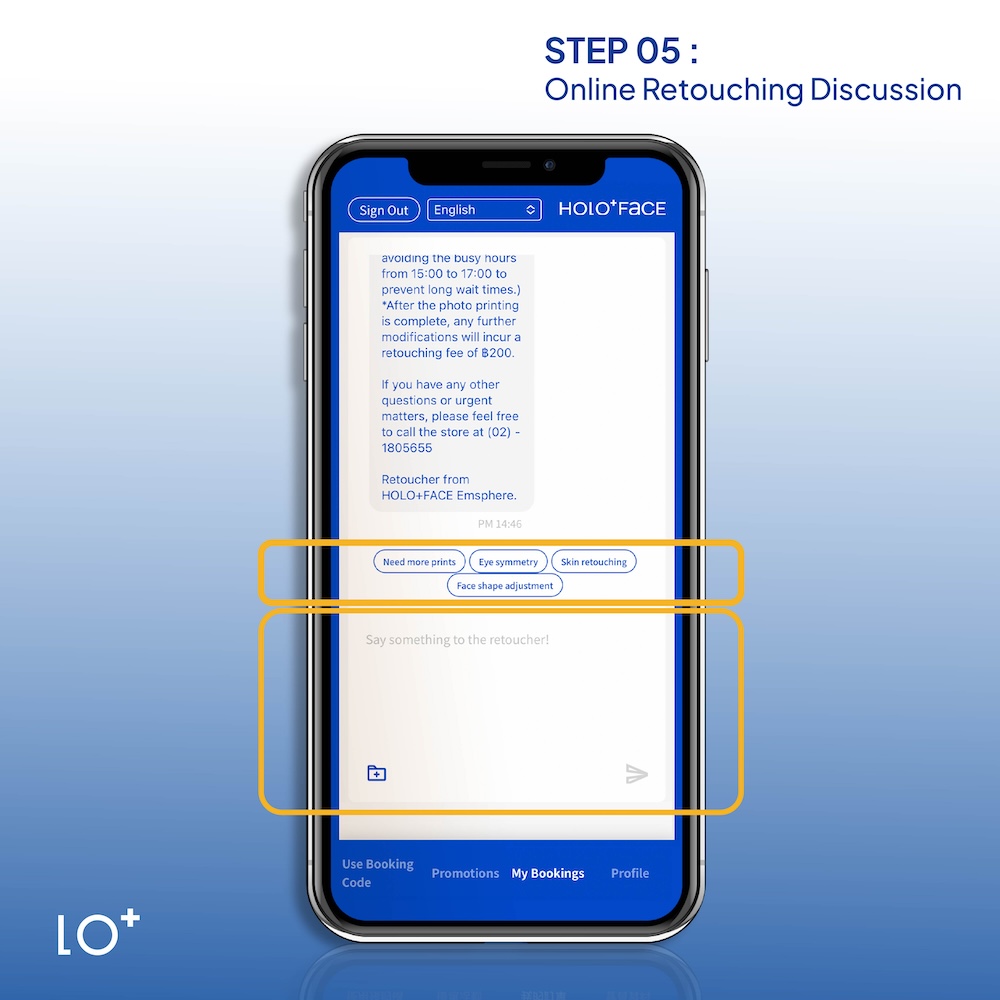
STEP-05|Online Retouching Discussion
Scroll down for each photo and use the chat box to tell the retoucher what you want changed.
Enter all the edits you want in one go, hit send, and wait for the retoucher to check and upload the revised photo.
🔔 Reminder: If your photo will be used for official documents, discuss with the retoucher to keep your personal features, so it won’t affect approval.
***** Online retouching is available up to 3 times *****
-
STEP-06|Confirm Photos
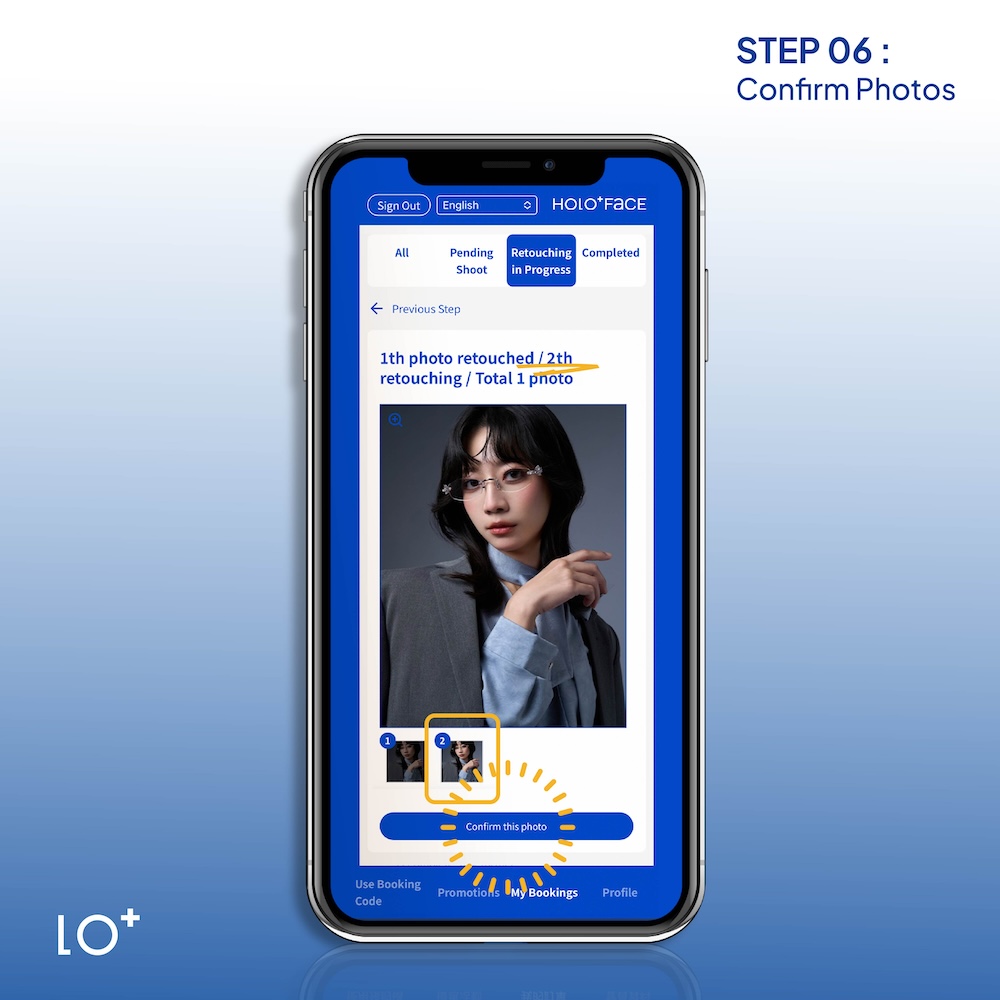
Check the retouched photos, pick the version you prefer, then tap “Confirm Photo.”
🔔 Reminder: Once you click, you can’t make any changes.
Please click carefully.
The sample shows two retouched versions. If you still prefer the first version after checking, you can select “Version 1” and then click “Confirm Photo.”
-
STEP-07|Download Photos & Leave Feedback
Please click “Download Photos” to download your pictures. Before that, please complete the feedback step first.
Your feedback helps us improve. Please feel free to share your experience with us.If any staff member made a good impression, you can also mention them here.
This feedback form is for internal review only, so please feel free to write honestly.
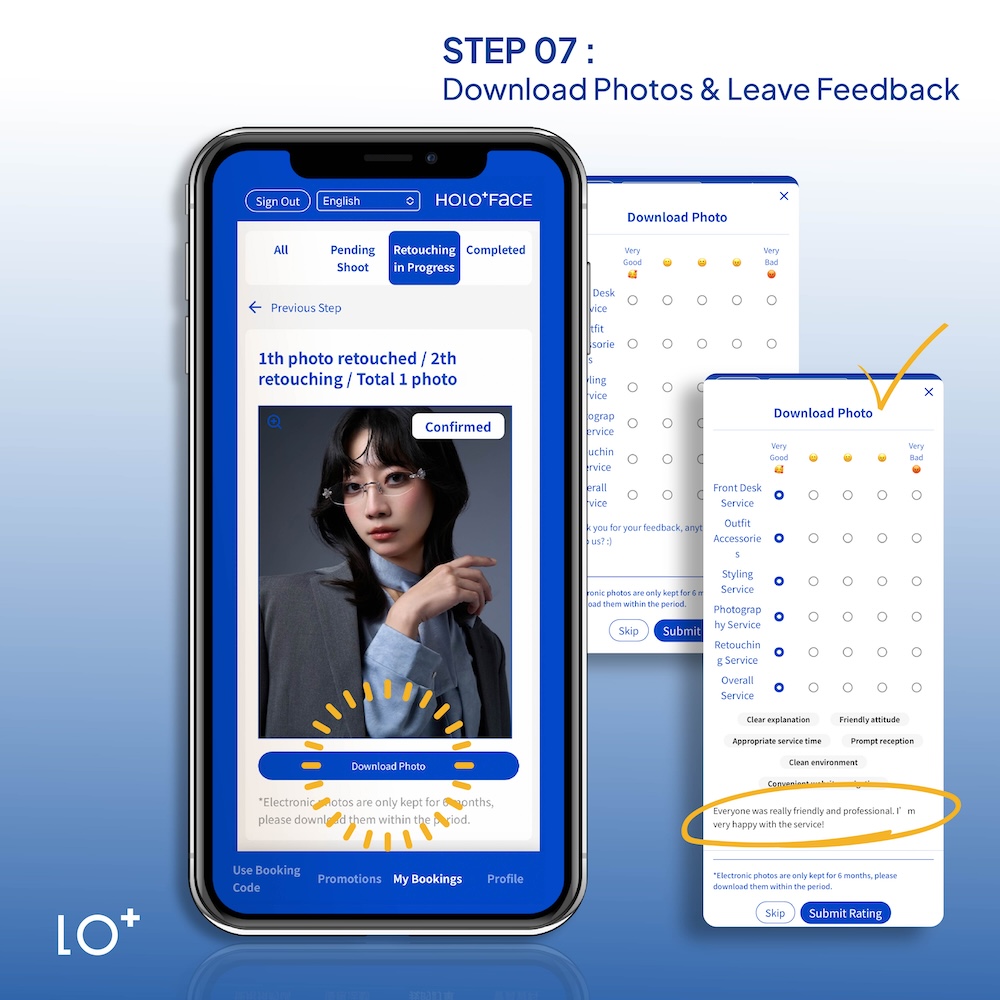
🔔 Reminder: Your photo files are kept for only six months after the shoot. Please remember to download them soon!
-
STEP-08|How to find the Photo Download page
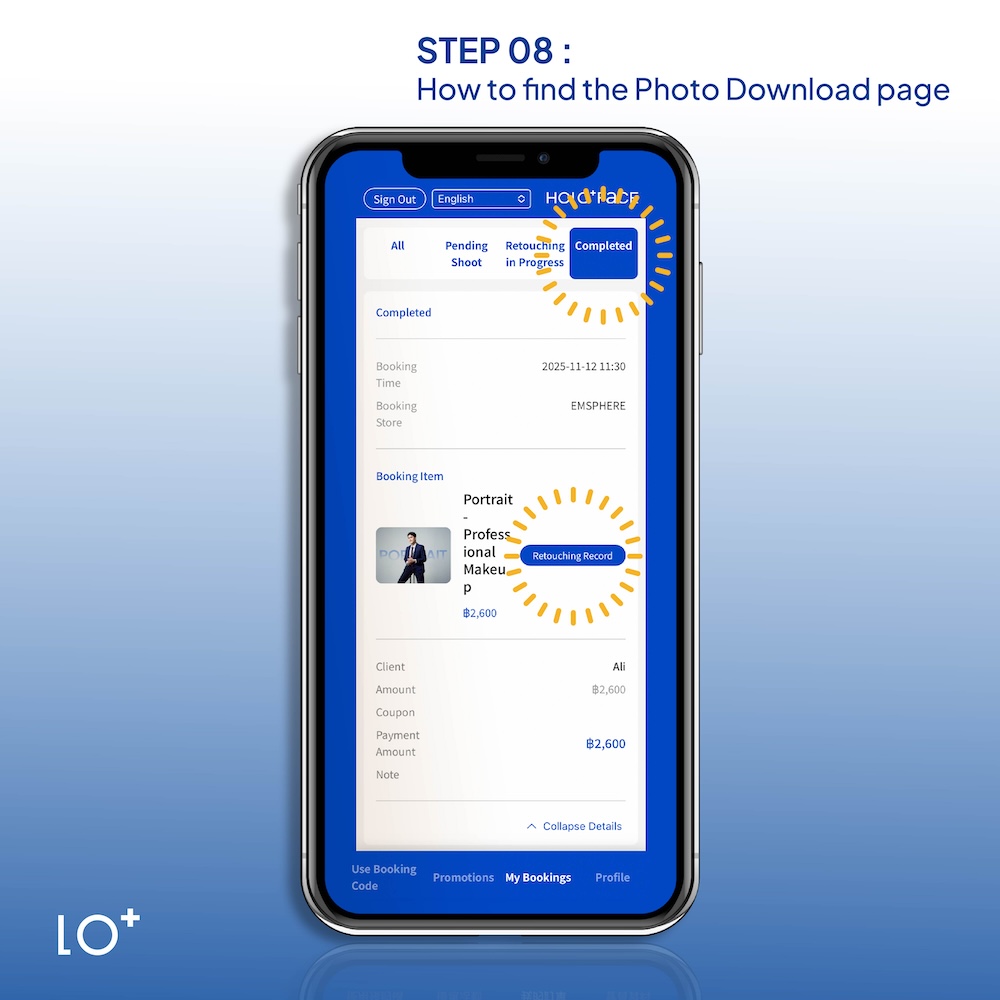
If you want to download your photos later, go to “My Bookings,” tap “Completed,” find your order, and download the photos.
Korean-Style Portrait in BKK
● More Products
‣ https://holoface.co.th/products-group● Business Hours
‣ Mon to Sun , 11:30 AM to 08:30 PM● Location
‣ EMSPHERE 1F , BKK ,Thailand.